 SaveJet
01What is SaveJet Desktop?
The website at savejet.app downloads one post at a time. SaveJet Desktop is the same tool packaged as an app that runs on your own computer, built for bulk work — point it at a whole profile or hashtag and it saves everything in original quality, organized in a Library.
Bulk downloads
Whole profiles & hashtags in one go — not just single posts.
Runs on your PC
No browser tab limits. Windows 10/11 and macOS 11+.
Session sign-in
Sign in with a session ID — your password never leaves your computer.
Auto-updates
New versions install silently in the background. No reinstalling.
02Download
Pick your platform. The links always serve the latest version:
- Windows — Installer (recommended): SaveJetDesktopProSetup.exe — installs per-user in seconds, no admin needed.
- Windows — Portable (no install): SaveJetDesktopProPortable.exe — a single file you can run from anywhere, even a USB stick.
- macOS — Disk image: SaveJetDesktopPro.dmg — Apple Silicon & Intel.
Or grab them from the downloads page.
03Install on Windows
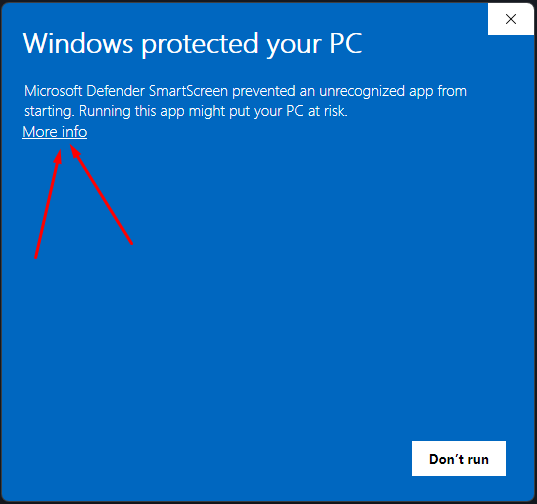
SaveJet is a free app and isn't code-signed yet, so Windows shows a one-time warning the first time you run it. This is normal for new free software — here's how to get past it:
Open the downloaded SaveJetDesktopProSetup.exe. Windows SmartScreen shows
“Windows protected your PC.” Click More info.
The dialog expands to show the app name and publisher. Click Run anyway.
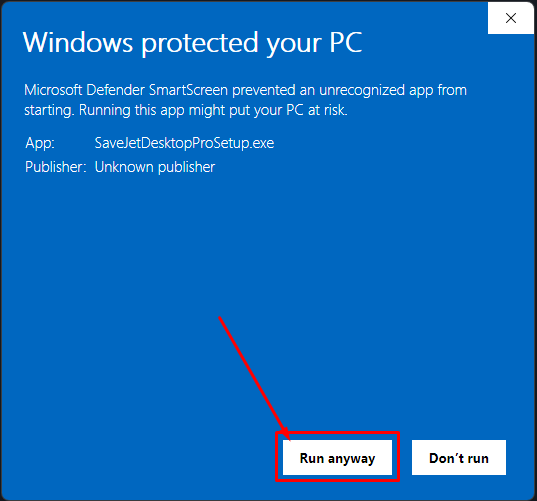
The app installs to your user folder in a few seconds and opens. After this first time, every automatic update installs silently — no SmartScreen prompt again.
04Install on Mac
The Mac build is unsigned too (free path), so macOS Gatekeeper asks you to confirm the first launch:
Open SaveJetDesktopPro.dmg and drag SaveJet Instagram
Downloader into your Applications folder.
The first time, macOS says “cannot be opened because it is from an unidentified developer.” Instead of double-clicking, right-click (or Control-click) the app → Open → Open.
That's it — macOS remembers your choice, so from then on it opens normally with a double-click.
05Using SaveJet Desktop
The app has four tabs in the left sidebar — Download, Tasks, Library and Account — plus built-in Help & tutorials.
1. Get your Instagram session ID
SaveJet signs in with a session ID — your password never leaves your computer. To find it, open instagram.com while logged in, then open your browser's developer tools:
- Press F12 (or right-click → Inspect) and open the Application tab.
- In the left panel: Storage → Cookies → https://www.instagram.com.
- Find the
sessionidrow and copy its full Value.
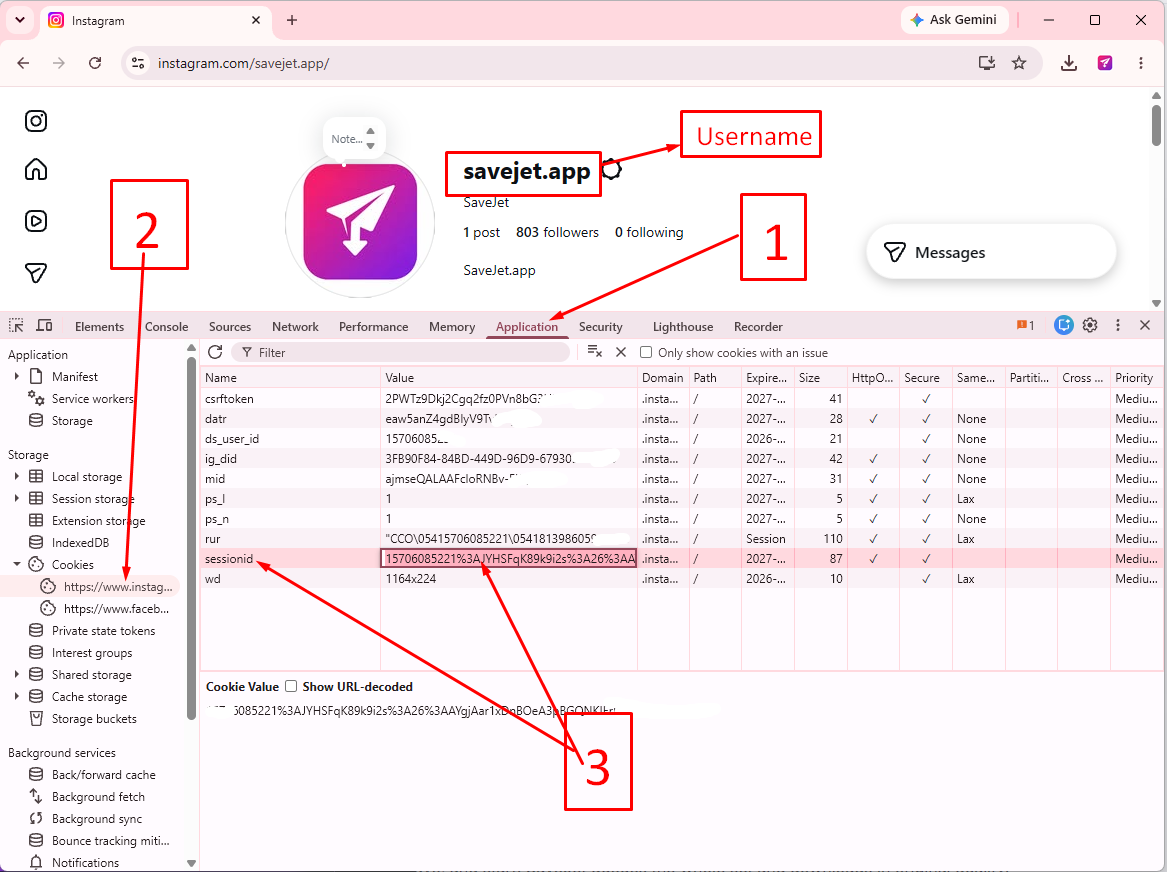
sessionid cookie value under Application → Cookies → instagram.com.2. Sign in (Account 🔑)
Open the Account tab, paste the session ID, and connect. The sidebar shows a green dot and your username once the session is valid.
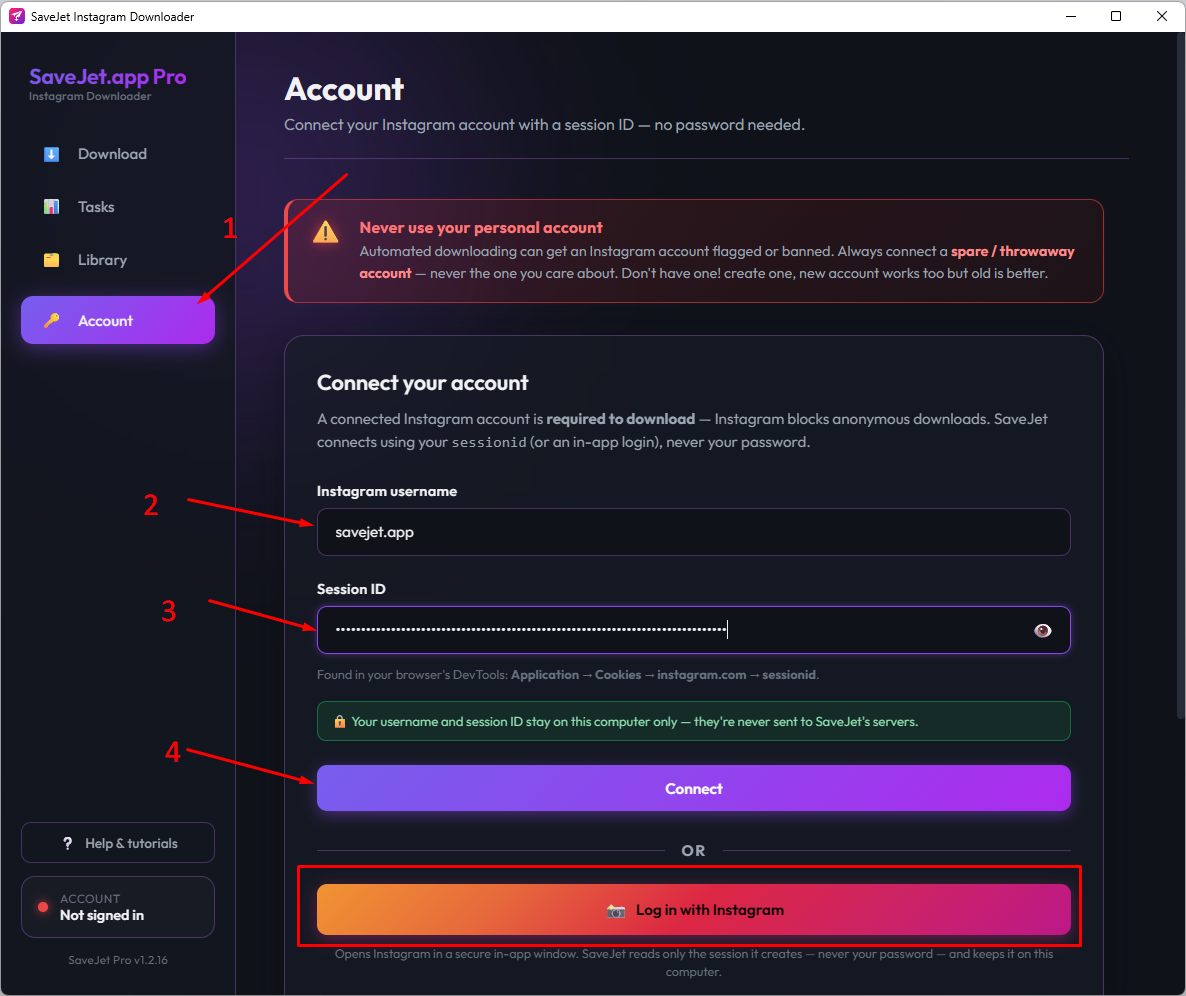
sessionid and connect.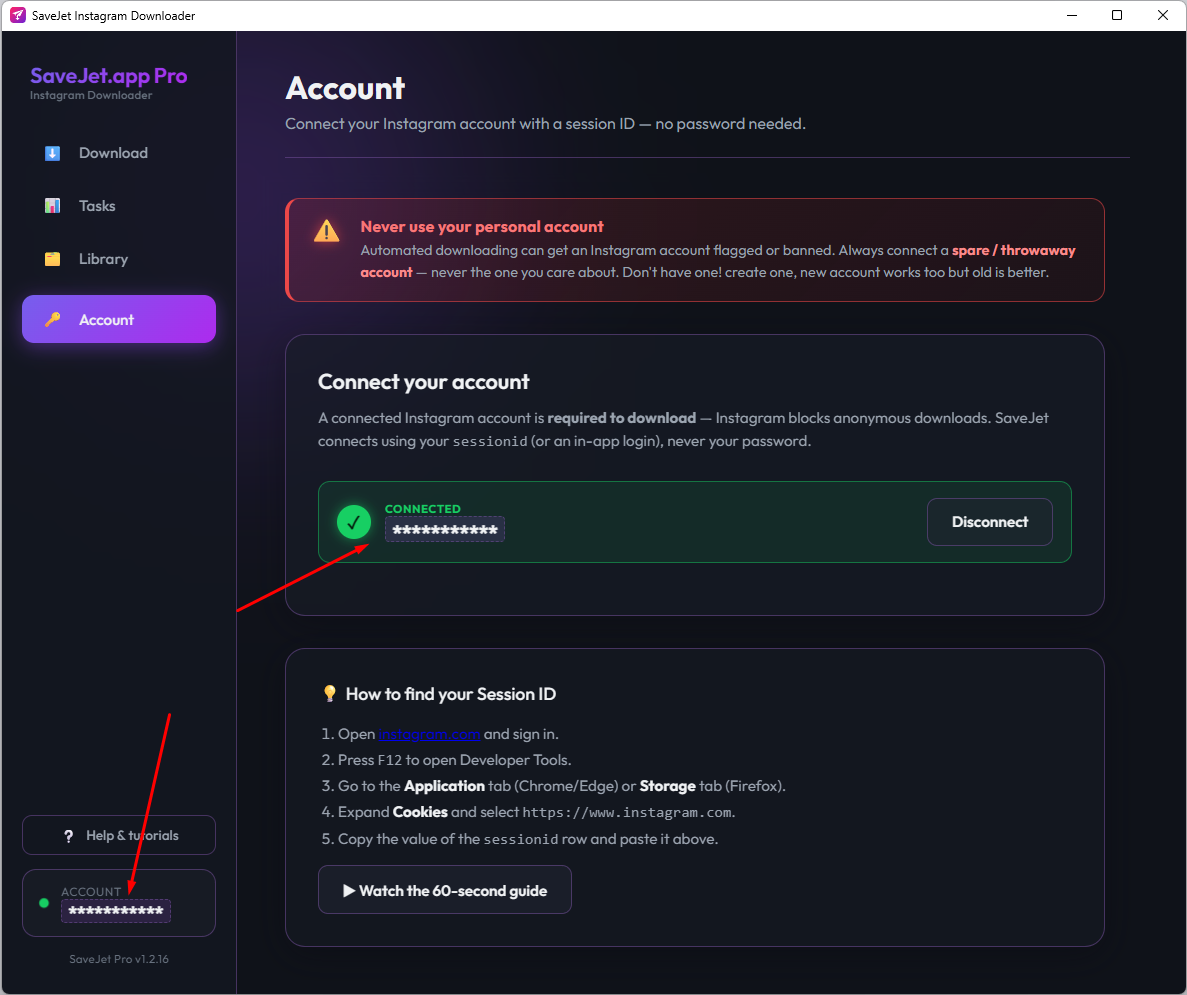
3. Download a whole profile or hashtag (⬇️)
On the Download tab, paste a profile @username or a #hashtag and
start. SaveJet grabs the entire set — all photos, videos and reels — in original quality into
a folder on your computer.
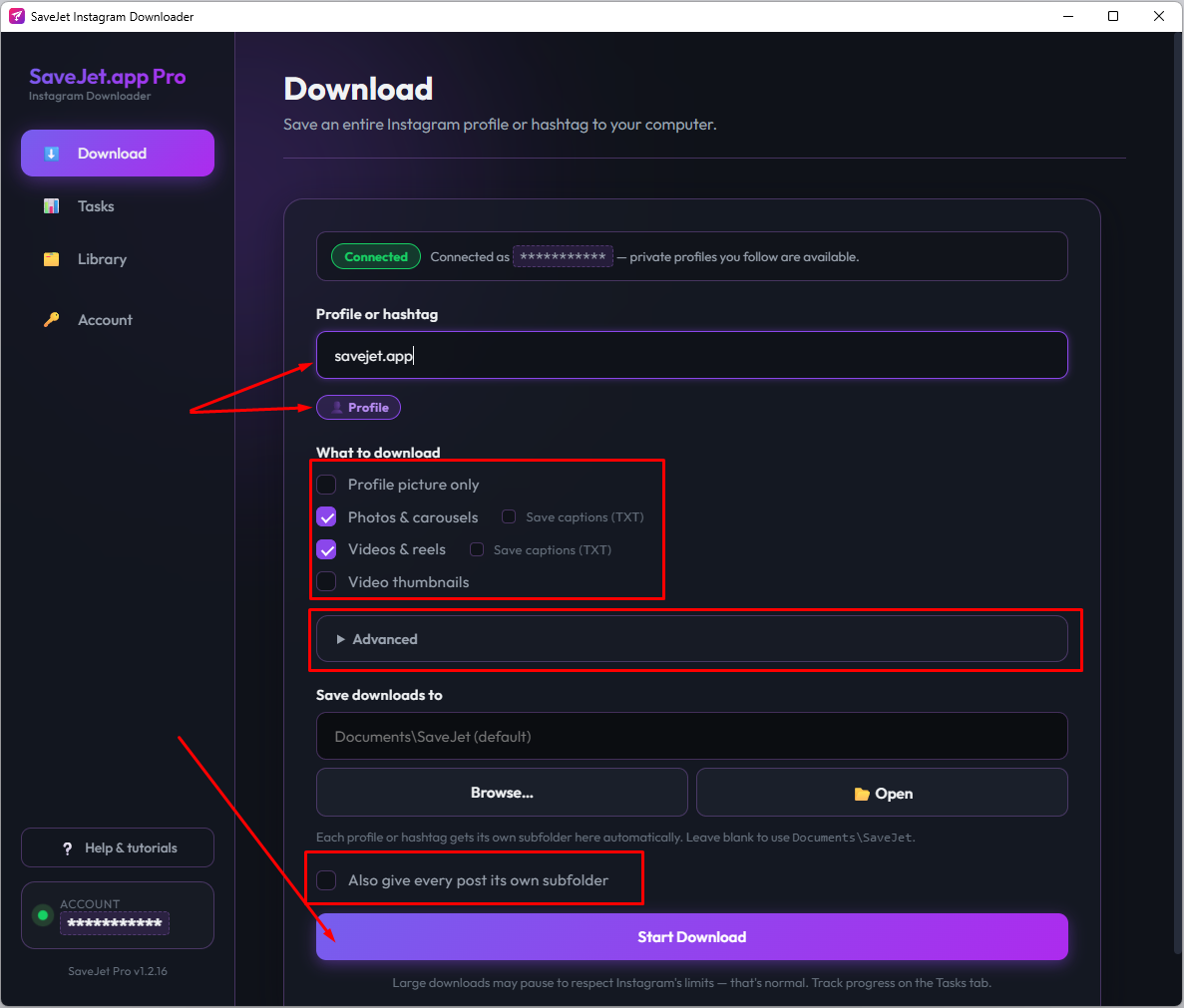
#hashtag, choose a folder, and start.4. Watch progress (Tasks 📊)
The Tasks tab lists every running and finished job with a live activity log; the sidebar badge shows how many are active.
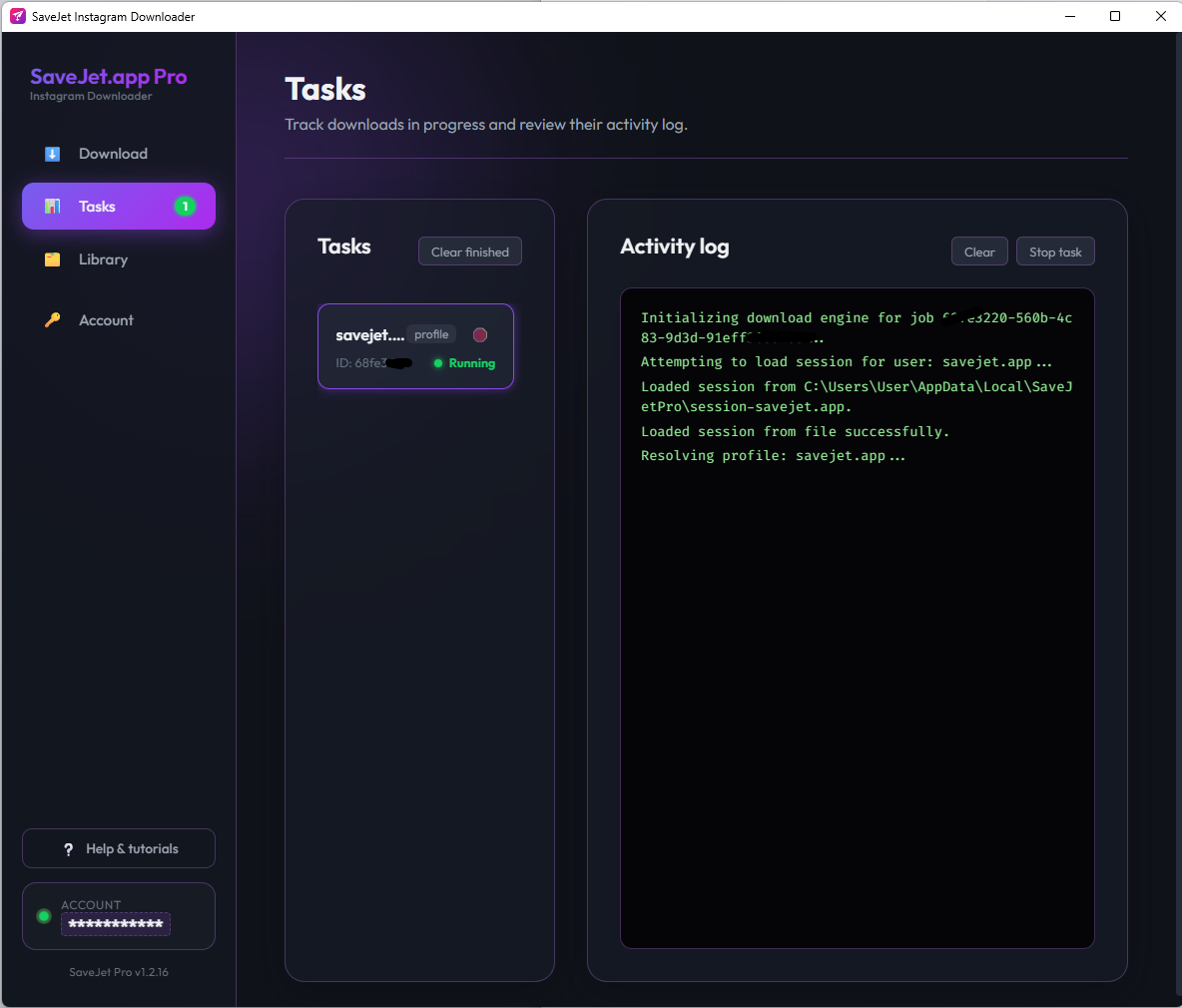
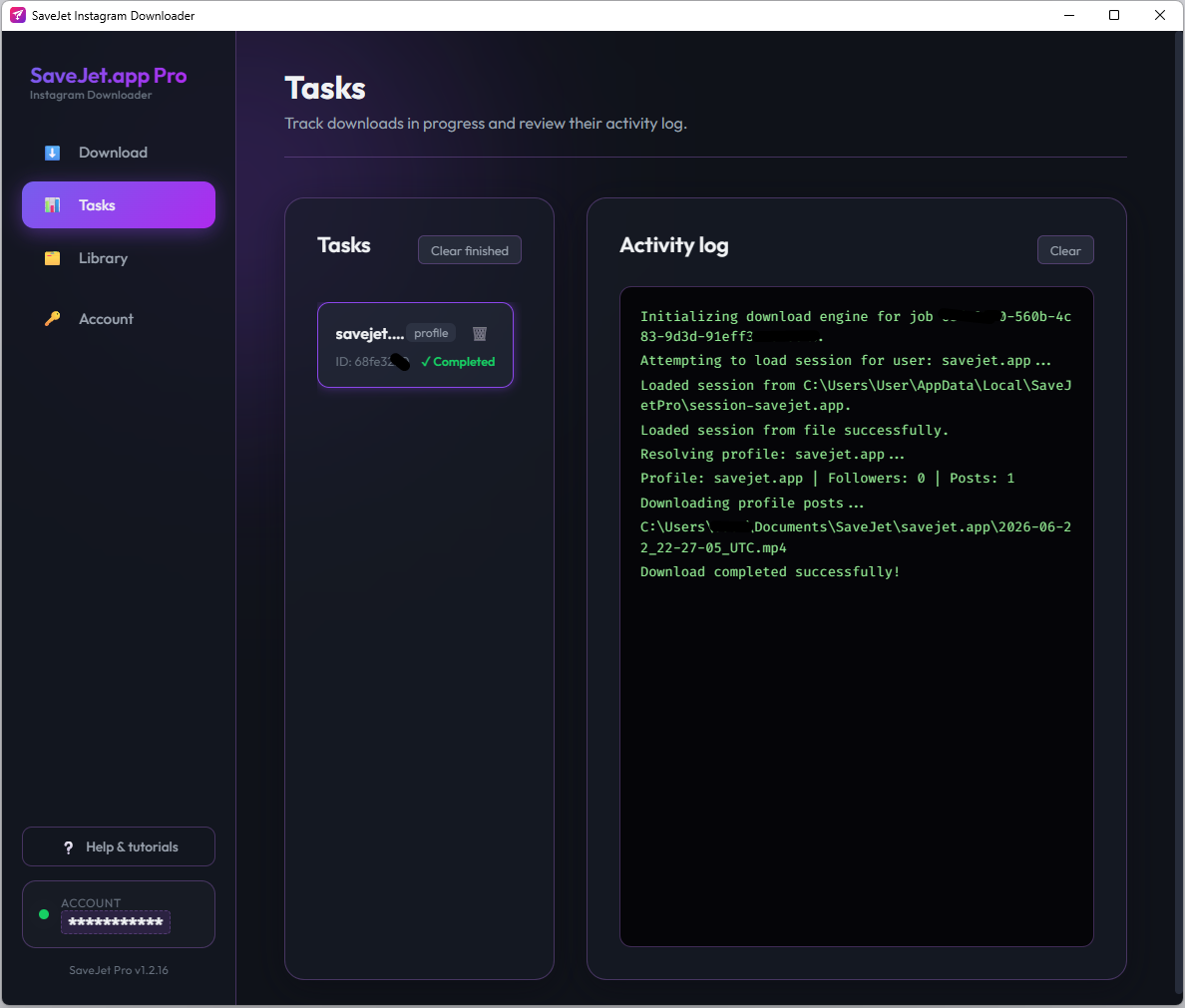
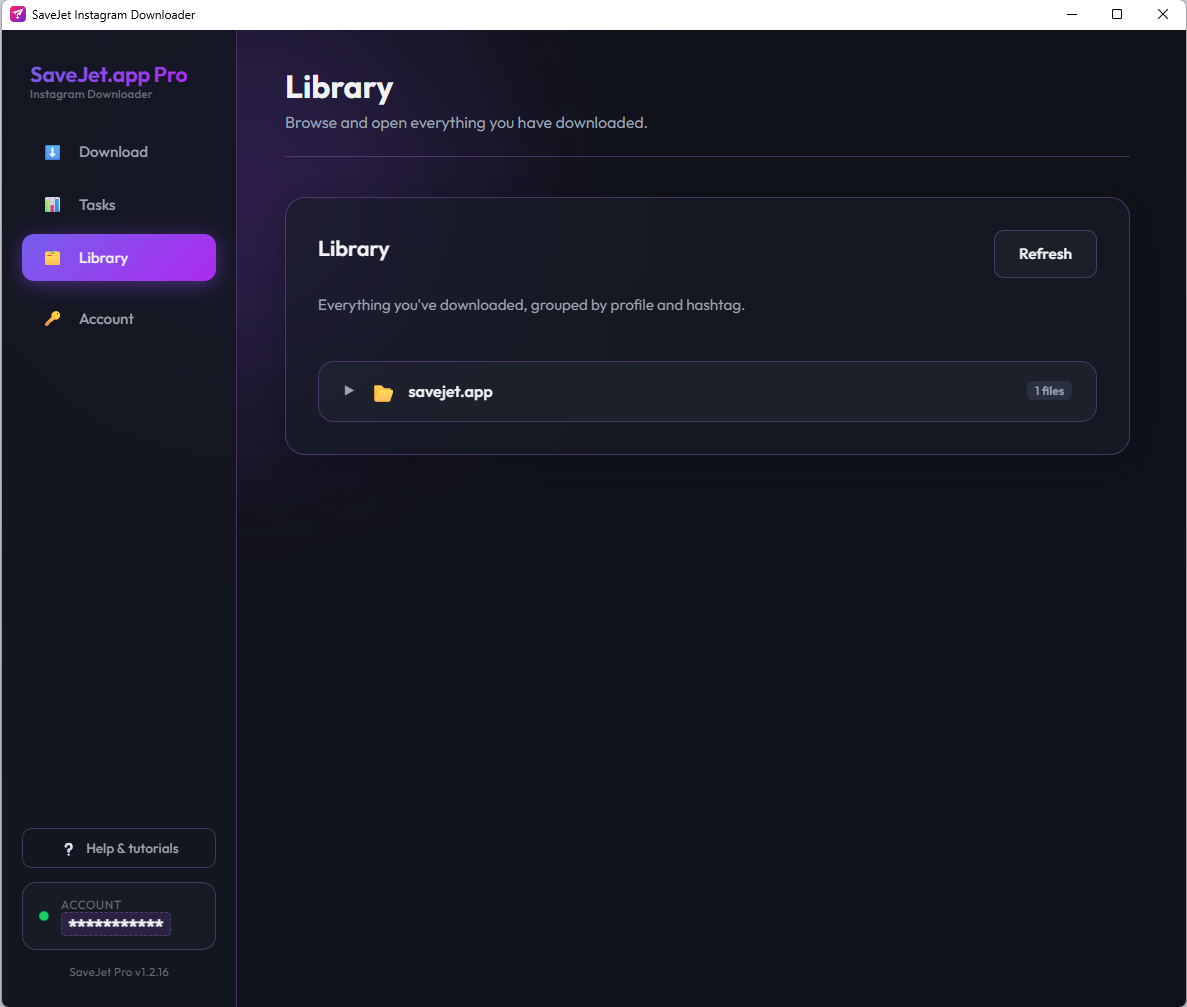
5. Find your files (Library 🗂️)
Everything you've downloaded is organized in the Library tab — browse, preview, and open the folder on your computer.
06Automatic updates
SaveJet keeps itself up to date. On launch it checks for a newer version; if one exists it downloads in the background and installs silently when you close the app — so your next open is already the new version. You can also click “Restart now” on the update banner to apply it instantly.
Because updates are downloaded and installed by the app itself, they don't trigger the Windows SmartScreen prompt — that only ever appears on the very first manual install.